

Create an agent
Create an AI agent that a process step can invoke. You build it from a single form — model, prompt, and behaviour — then bind it to a service task.
Before you start
Section titled “Before you start”- The organization has an AI provider key set up in Secrets (see Manage secrets). Without one, you can author an agent but you can’t run it.
- You’ve sketched what the agent reads and what structured output the step should capture. (You define the output when you attach the agent to a step, not on the agent itself.)
- If the agent will call tools (look up POs, verify vendors), the relevant connectors and MCP servers are set up (see Give an agent tools).
-
Create the agent. In the project sidebar, click Agents → New agent. There’s no template gallery — every agent starts from the same form. Fill in:
- a name and identifier;
- the model — provider and model — and optionally turn on Enable Fallback to add a second provider/model it cascades to if the primary fails;
- the system prompt — its durable instructions (a built-in Prompt Assistant can help you draft one);
- optional instructions and capabilities that shape its behaviour.
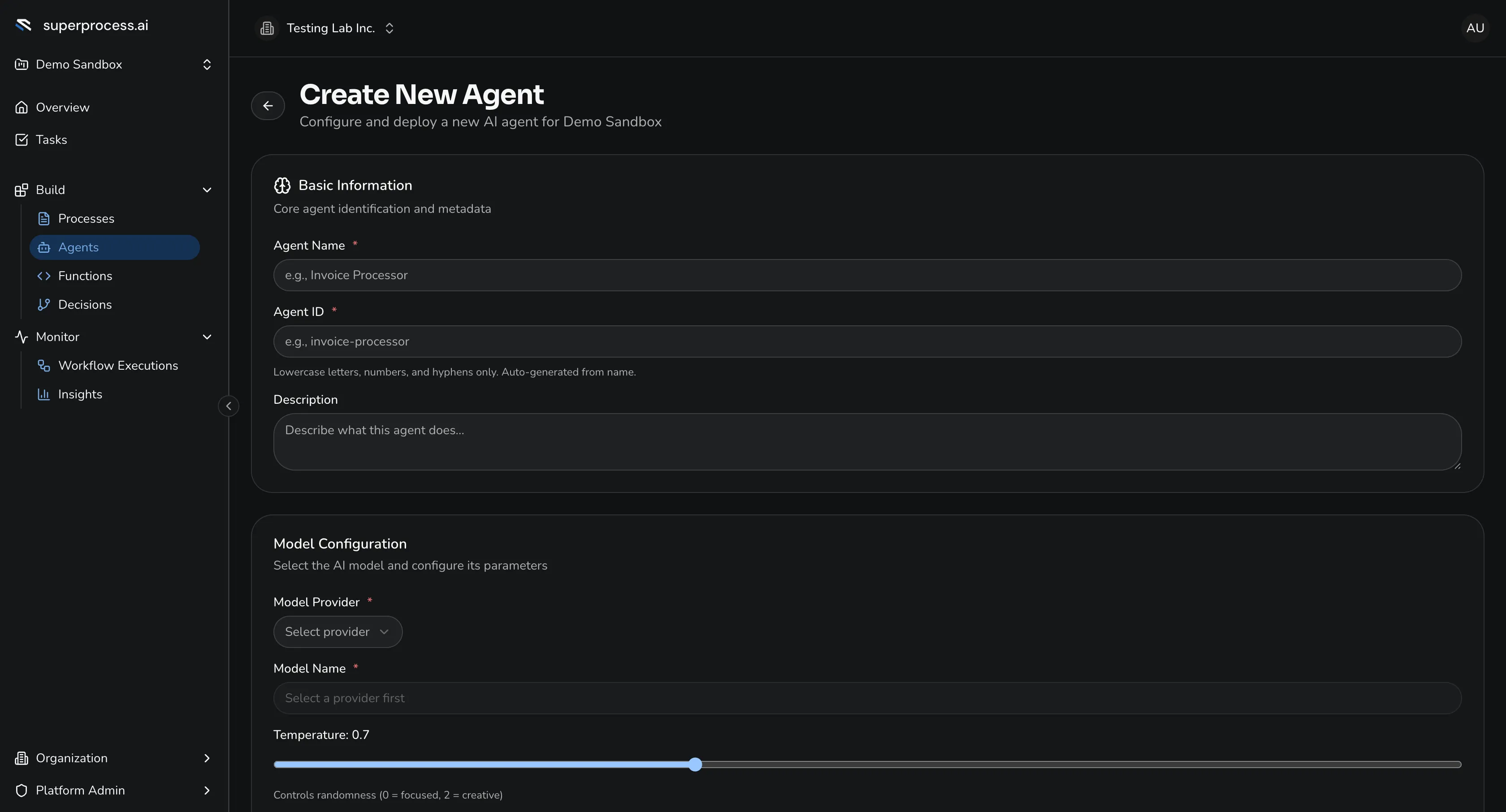
The New agent form — one form for name, model, and prompt; no templates. -
Give it tools (optional). Open the Tools & Integrations tab. Add the connectors the agent may call — each becomes a callable tool — and assign any MCP servers whose tools it should use, then Save Tool Configuration. See Give an agent tools.
-
Test it. On the Test tab, enter a test prompt and click Test Agent. The agent runs and shows its text or JSON output and the time it took. Tweak the prompt or model and run again until it behaves.
-
Save. The agent is saved to the project, ready to attach to a process.
-
Attach it to a process. In the process designer, drop a service task, set its type to AI Agent, and step through the dialog:
- Select Agent — pick the agent (and optionally a published version to pin).
- Input Mapping — map process variables to the agent’s inputs.
- Task Prompt — the task-specific prompt, added to the agent’s base prompt.
- Output Configuration — the output and error variables the step writes back.
- Advanced — timeout, fallback, and validation.
Common variations
Section titled “Common variations”- Tool-calling agents. With connectors or MCP servers bound, the agent calls tools autonomously based on its prompt and input — read a result, decide, call another. The runtime handles the loop; just watch the added latency per call.
- Fallback model. Turn on Enable Fallback to run a cheaper primary model and cascade to a more capable one if the primary errors out.
- Classification agents. Keep the output narrow — a single value from a fixed list — and say so in the task prompt and output configuration. Useful for routing (ticket type, sentiment, priority).
Troubleshooting
Section titled “Troubleshooting”- The model returns invalid or unstructured output. Tighten the task prompt and the Output Configuration on the service task — name the fields and constraints explicitly.
- The agent can’t reach a tool. Confirm the connector or MCP server is set up and assigned on the agent’s Tools & Integrations tab, and that its credentials are valid.
- Calls take 60+ seconds. Usually a multimodal call against a large model. Try a smaller model, or simplify the input (a few pages of the PDF instead of all of them).