

Configuring the agent
In the previous page you dropped a service task and set its type to AI Agent, but didn’t say which agent or what it should do. That’s two parts: first create the agent, then configure the step that uses it.
Create the agent
Section titled “Create the agent”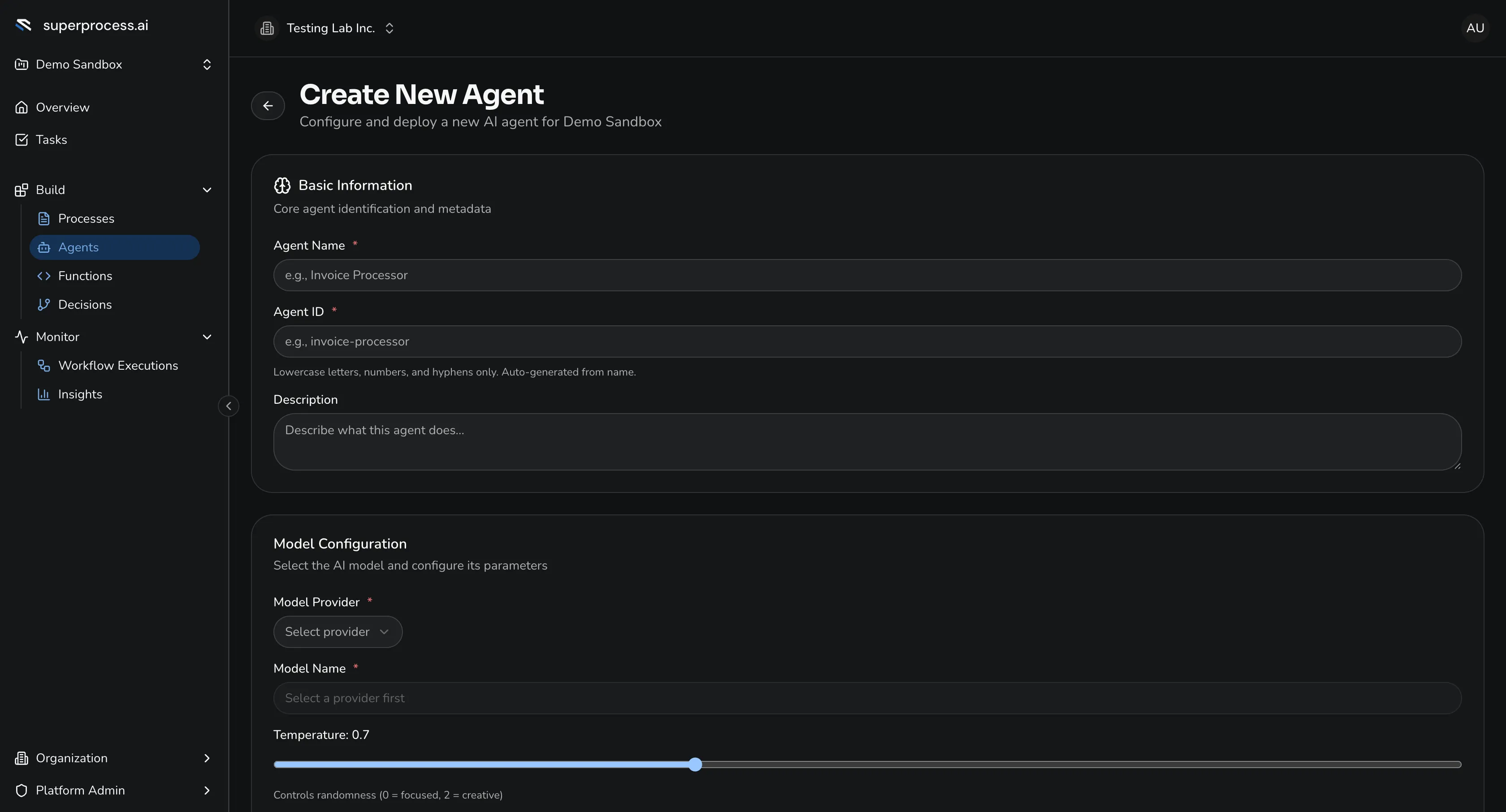
Go to Agents → New agent. There’s no template to pick — every agent starts from the same form. For the invoice scenario, set:
- a name — “Invoice Extraction”;
- the model — a multimodal model, since it has to read a PDF;
- the system prompt — its durable instructions: “You extract structured data from invoice PDFs. Read the attached document carefully. If a field is genuinely missing, leave it empty — don’t guess. Subtotal plus tax must equal the total.” (The Prompt Assistant can help you draft this.)
Optionally turn on Enable Fallback to cascade to a more capable model if the primary errors out. Save the agent.
Configure the service task
Section titled “Configure the service task”Back in the process designer, click the service task and step through its dialog.
-
Select Agent — pick your Invoice Extraction agent. (Optionally pin a published version so this process’s behaviour is fixed.)
-
Input Mapping — map the incoming invoice (the PDF and any starting variables) to the agent’s inputs.
-
Task Prompt — the step-specific ask, added to the agent’s base prompt: “Extract the vendor, invoice number, PO number, amount, and line items.”
-
Output Configuration — define the variables the step writes back, so downstream steps can read them (remember the gateway condition
amount < 10000). Map the extracted fields to process variables:Agent output Process variable vendorvendorinvoice_numberinvoice_numberamountamountpo_numberpo_number -
Advanced — timeout, fallback, and validation. The defaults are fine for the invoice flow.
Save and run
Section titled “Save and run”Save the step. Back in the designer, click Deploy to Temporal. The process is live — the next invoice that arrives in invoices@yourcompany.com triggers a run.