

Handling the task
When an invoice hits the human-review branch of the gateway, the process pauses and waits for a person to make the call. That person sees the task in their inbox.
The inbox view
Section titled “The inbox view”The Tasks inbox is the equivalent of an email inbox for process work. Each row is one task — what process it’s part of, its status, and when it was created. You can group tasks by process, filter by status, search, and sort — and save a filter combination you use often as a named view.
Claim the task
Section titled “Claim the task”A task with no owner shows Claim in the action column. Clicking it assigns the task to you; other approvers can still see it but only you can act on it. This prevents two people from approving the same invoice.
If you change your mind, Release it back to the queue — or Reassign / Delegate it to someone else.
The task detail
Section titled “The task detail”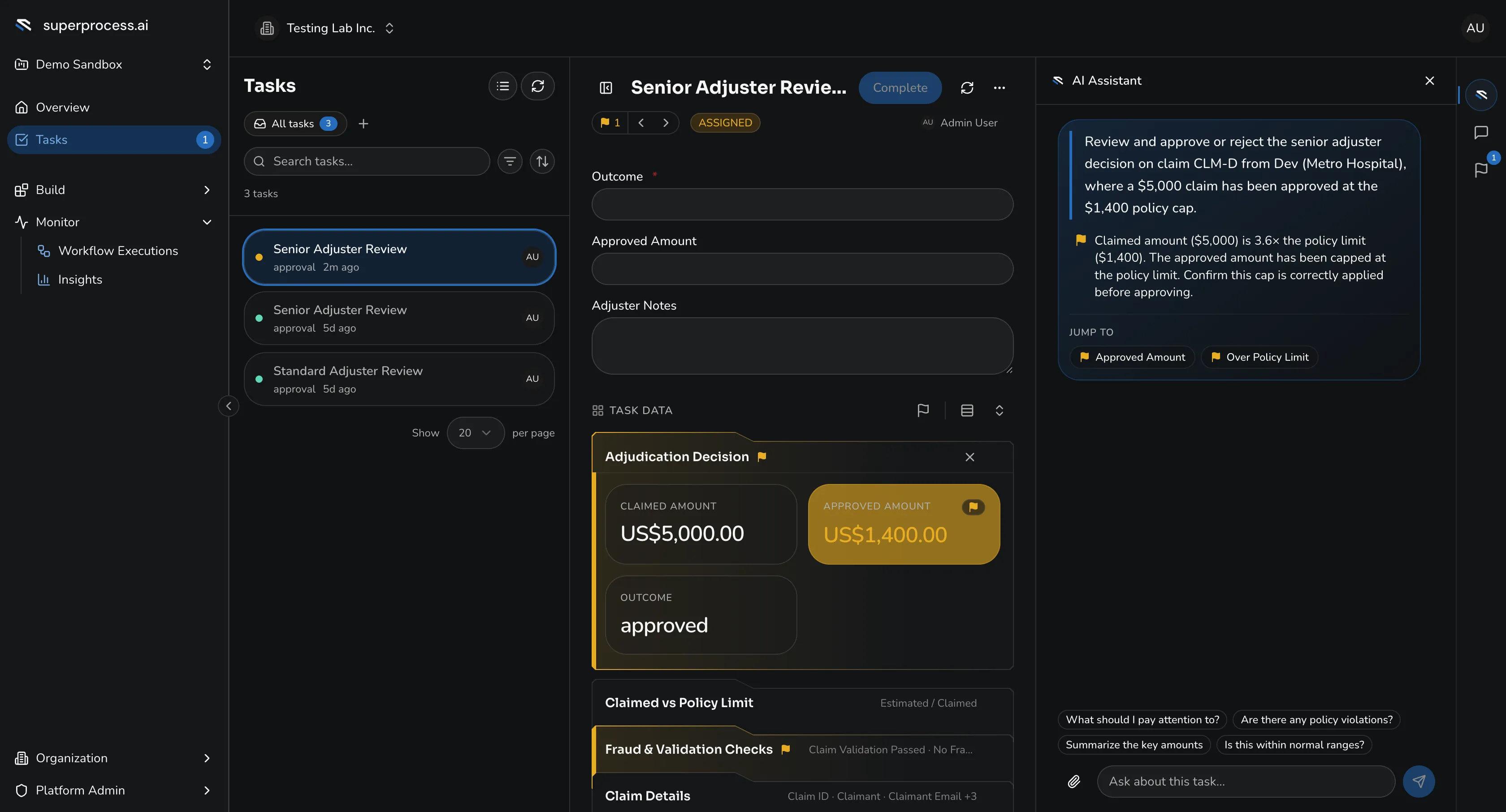
The detail page gives you everything to decide, in one screen:
- the completion form to fill in — the fields and actions the process attached to this task;
- the task’s data sections — the agent’s extracted fields, source documents (scroll and zoom the PDF inline), and context like vendor history and the PO;
- an AI review assistant on the right that summarises the task, flags fields that need a closer look (an amount over the policy limit, a validation warning), and answers questions about the case.
Required fields are called out, and the task can jump you straight to the next field that needs attention.
Complete the form
Section titled “Complete the form”Fill in the form and pick an action. The buttons come from the form the process attached — commonly Approve and Reject, sometimes with Request info or an amount to confirm. Submitting unblocks the process; the next step runs immediately.
If you approved, the invoice posts to the ledger and the process ends. If you rejected, the process branches to a rejection-notification email and ends.